
To wipe your phone before selling it, back up your data, sign out of your Apple or Google account (which turns off the anti-theft lock), remove payment cards and your eSIM, and then factory reset the phone from Settings. On an iPhone that’s “Erase All Content and Settings”; on Android it’s “Factory data reset.” Signing out first is the step most people miss, and it’s the one that decides whether the buyer can actually use the phone.
Skip it and you risk two problems: your accounts stay linked to a device you no longer own, or the buyer gets a phone that’s locked to you. This guide walks through both iPhone and Android (including Samsung’s extra lock), the steps to do before the wipe, and what to do if the phone is already out of your hands.
Quick answer: how to wipe your phone before selling in 6 steps
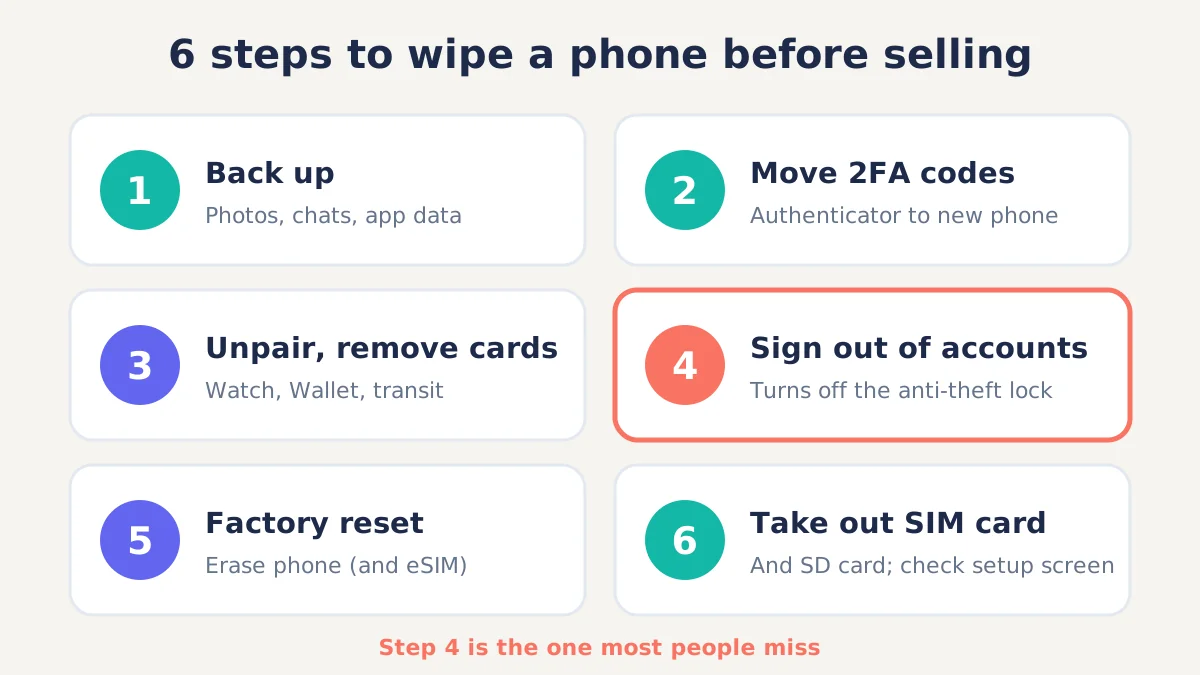
A safe wipe takes six steps, and the order matters:
- Back up your photos, messages and app data.
- Move two-factor codes out of any authenticator app on the phone.
- Unpair your smartwatch and remove payment cards.
- Sign out of your Apple Account or remove your Google (and Samsung) account. This switches off Activation Lock or Factory Reset Protection.
- Factory reset the phone, erasing the eSIM if you’re not keeping it on this device.
- Remove the physical SIM card and any memory card, then confirm the phone boots to the setup screen.
Plan for about an hour. On Android, Google notes that the reset itself can take up to an hour, and backups can take longer on a slow connection.
Why a factory reset alone isn’t enough
A factory reset erases the data on the phone, but it doesn’t always cut the phone’s link to your account. That link is the anti-theft lock, and it survives a reset by design.
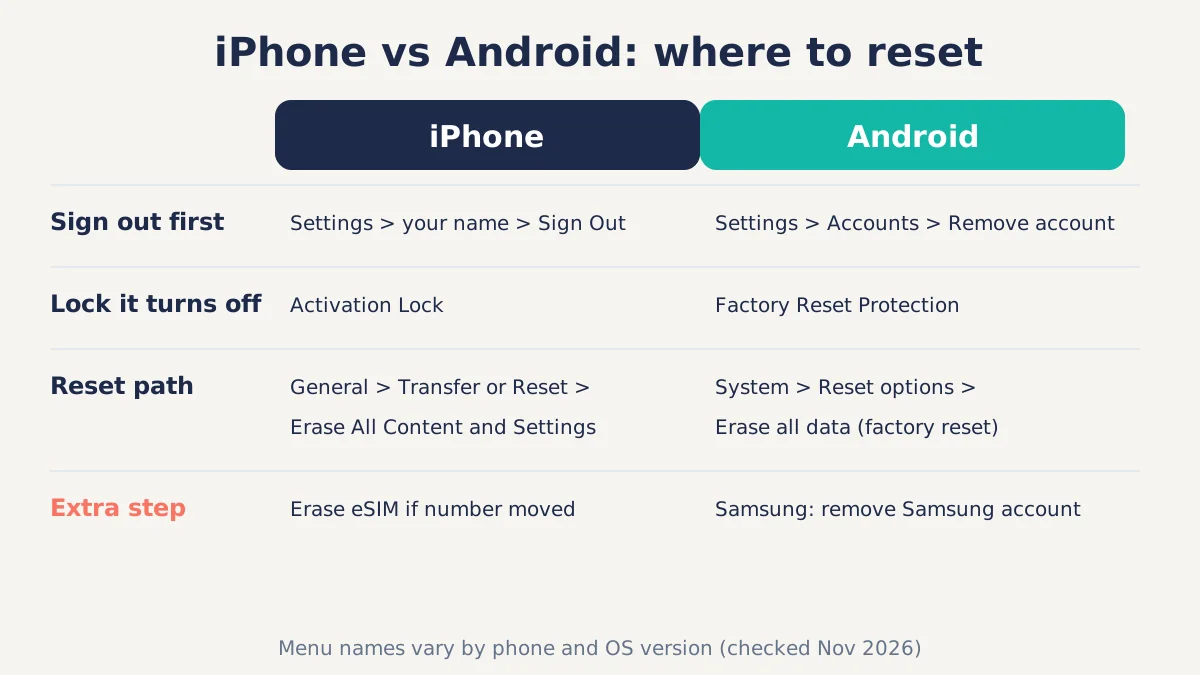
- Activation Lock (iPhone) is a Find My feature that ties the phone to your Apple Account. Apple’s guidance says Find My and Activation Lock turn off when you erase the device after signing out.
- Factory Reset Protection, or FRP (Android), is a Google feature that asks for the previous owner’s Google account after a reset. Google’s help page says that to turn this protection off, you remove your Google account from the device.
- Samsung Reactivation Lock is an extra lock on Galaxy phones tied to your Samsung account, as T-Mobile’s support page describes.
If any of these locks is still on, the buyer will be stuck at a screen asking for your password. Trade-in programs will usually reject or devalue a locked phone, and private buyers will (rightly) ask for their money back.
The good news on privacy: modern phones encrypt their storage. Apple’s Platform Security guide explains that erasing an iPhone discards the encryption keys, which leaves old data unreadable. On Android, phones that launched with Android 10 or later can’t use the older full-disk method and use file-based encryption instead, according to Android’s encryption documentation. So once the reset is done properly, leftover data recovery isn’t a realistic concern for a normal buyer.
Before you wipe: 5 things to do on any phone
These five prep steps protect your data and accounts before anything is erased. Do them first, because they’re impossible or painful to do after the reset.
1. Back up everything you want to keep
A backup is a copy of your data stored somewhere other than the phone, such as iCloud, Google One or a computer.
- iPhone: Settings > [your name] > iCloud > iCloud Backup > Back Up Now, or back up to a Mac or Windows PC.
- Android: Settings > Google > Backup (wording varies by brand) > Back up now. Google’s reset guide recommends backing up to your Google Account before resetting.
- Check chat apps separately. WhatsApp, Signal and some other messengers use their own backups. Open each app’s settings and confirm a recent backup exists.
If you’re moving to a new phone, transfer data directly before you wipe the old one. It’s faster than restoring from a cloud backup.
2. Move your two-factor authentication codes
Two-factor authentication (2FA) is a second sign-in check, often a 6-digit code from an app like Google Authenticator or Microsoft Authenticator. If those codes live only on the old phone, wiping it can lock you out of your bank, email or work accounts.
- Use the app’s built-in transfer or cloud-sync feature to move codes to your new phone.
- For accounts that don’t support transfer, sign in on the new phone and set up 2FA again before wiping the old one.
- Make sure you have backup codes saved somewhere safe.
[ADD PERSONAL EXPERIENCE: Describe a time you (or a reader) nearly lost access to an account because 2FA codes were only on the old phone, and how long the recovery took.]
3. Unpair accessories
Unpair your smartwatch before the wipe. Apple’s pre-sale guidance lists unpairing an Apple Watch as one of the first steps; unpairing also creates a watch backup on the iPhone. For a Wear OS watch or Galaxy Watch, reset or disconnect it in the companion app. Also forget the phone on your car, earbuds and smart-home hubs so they stop trying to connect.
4. Remove payment cards and transit passes
Remove cards from Apple Wallet or Google Wallet, and move any transit card with a balance. Google’s reset page notes that on Android 15 and up you may be reminded to back up transit cards with funds. A reset clears wallet cards, but removing them first also stops the bank’s token for that device.
5. Decide what happens to your SIM or eSIM
An eSIM is a digital SIM built into the phone. If you’re keeping your number on a new phone, transfer the eSIM to the new phone first, using your carrier’s app or the transfer option during setup. Once your number works on the new phone, you can erase the eSIM profile from the old one. If you use a physical SIM, take it out after the reset; it’s your number, not the buyer’s.
How to wipe an iPhone before selling
To wipe an iPhone before selling, sign out of your Apple Account, then go to Settings > General > Transfer or Reset iPhone > Erase All Content and Settings. Apple’s steps below are current as of November 2026.
Step 1: Sign out of your Apple Account
- iOS 26 or later: Settings > tap your name > scroll down > Sign Out. You’ll be asked whether to erase the device or sign out without erasing.
- iOS 18 or earlier: Settings > tap your name > Sign Out > enter your Apple Account password > Turn Off.
Signing out turns off Find My, which removes Activation Lock.
Step 2: Deregister iMessage if you’re switching to Android
If your next phone isn’t an iPhone, deregister iMessage, as Apple advises. Otherwise, texts from iPhone users may keep trying to reach you as iMessages and never arrive on your new phone. You can do this from the iPhone (turn off iMessage in Settings > Apps > Messages) or online through Apple’s deregistration page if you no longer have the phone.
Step 3: Erase all content and settings
Go to Settings > General > Transfer or Reset iPhone > Erase All Content and Settings, enter your passcode, and tap Erase. Apple says this completely erases the device, removes Apple Pay cards, photos, contacts and music, and turns off iCloud, iMessage and FaceTime. Your iCloud data stays in iCloud; erasing the phone doesn’t delete it.
Step 4: Handle the eSIM
During the erase, iOS asks about your eSIM. Choose to erase the device and the eSIM profile if your number has already moved to a new phone. If it hasn’t, transfer it first. Apple notes you can contact your carrier if you need help moving service.
Step 5: Remove the phone from your trusted devices
After the reset, sign in to your Apple Account on another device or at account.apple.com and remove the old iPhone from your device list. This stops it from receiving verification codes.
How to wipe an Android phone before selling
To wipe an Android phone before selling, remove your Google account first, then run a factory data reset from Settings. Menu names vary by brand, but the order matters on every Android phone.
Step 1: Remove your Google account
Go to Settings > Passwords & accounts (or Accounts, or Users & accounts) > select your Google account > Remove account. Repeat for every Google account on the phone. Google states that removing the account is how you turn off device protection (FRP).
Step 2: Prepare for the reset
Google’s factory reset guide recommends:
- Charge the phone to at least 70%.
- Connect to Wi-Fi or mobile data.
- Know your screen lock PIN, pattern or password.
- Allow up to an hour for the reset.
Step 3: Run a factory data reset
On most phones, go to Settings > System > Reset options > Erase all data (factory reset). On a Google Pixel, that path is the default. Confirm with your PIN, and let the phone restart to the “Welcome” setup screen.
Step 4: Extra steps for Samsung Galaxy phones
Samsung phones have a second account and a second lock to remove.
- Remove your Samsung account: Settings > Accounts and backup > Manage accounts > Samsung account > Sign out or Remove account. This switches off Reactivation Lock.
- Remove your Google account the same way.
- Factory reset: Settings > General management > Reset > Factory data reset > Reset. Samsung US support has model-specific screenshots.
If you skip the Samsung account, the buyer may be asked for your Samsung password after setup, even with the Google account removed.
Step 5: Remove the SIM and memory card
Pop out your SIM card and any microSD card. A factory reset on many Android phones doesn’t format the memory card, so photos saved there would go to the buyer.
How to check the wipe worked
A properly wiped phone boots to the language or “Hello” setup screen and lets a new user sign in without asking for your account. Before you hand it over:
- Turn it on and watch the first screen. It should be the setup wizard, not your lock screen.
- On iPhone, check that the phone is gone from the Find My device list on another Apple device or iCloud.com.
- On Android, check that the phone is gone from your device list at myaccount.google.com, under Security > Your devices.
- Check the SIM tray and memory card slot are empty.
Don’t set the phone up with a new account to “test” it, because that re-creates the lock. Let the buyer do the setup.
Already sold or lost the phone? What to do
If the phone is already gone, you can still protect yourself. Apple says to ask the new owner to erase the phone using the steps above, or erase it remotely with Find Devices at iCloud.com if it’s lost or stolen. For Android, use Google’s Find Hub (previously Find My Device) at google.com/android/find to erase it remotely.
Then lock down your accounts:
- Remove the phone from your Apple or Google device list.
- Change your Apple Account or Google password.
- Turn on two-factor authentication if it isn’t already on.
- Remove the phone from your bank and payment apps’ trusted devices.
Apple points out that these account steps won’t remove data still sitting on the old phone. They do stop that phone from accessing your accounts.
Trade-in vs selling privately: extra tips
The wipe is the same either way, but the hand-off is different.
| Carrier or Apple trade-in | Selling privately | |
|---|---|---|
| Anti-theft lock off | Required; locked phones are usually rejected or devalued | Required; buyer can’t use the phone otherwise |
| Factory reset | Do it yourself before shipping or the store visit | Do it before meeting the buyer |
| Photos of condition | Take dated photos of the screen and body before shipping | Useful for the listing |
| SIM and memory card | Remove before shipping | Remove before handing over |
| Payment | Credit after inspection | Use a safe method; avoid overpayment and “send a code” scams |
Apple also notes that if you trade in an Android phone to Apple, you must sign out of your Android account first, or it can affect trade-in eligibility.
If you’re comparing kiosks and mail-in buyers, our guide on how to find and use ecoATM promo codes covers ways to get a little more for an old phone.
FAQ
Is a factory reset enough before selling a phone?
Not on its own. A factory reset erases your data, but you also need to sign out of your Apple Account or remove your Google and Samsung accounts. Otherwise Activation Lock, Factory Reset Protection or Reactivation Lock stays on and the buyer can’t set up the phone. Back up and remove payment cards first, too.
Does a factory reset delete everything permanently?
On modern iPhones and Android phones, yes for practical purposes. Storage is encrypted, and erasing the phone discards the keys, so leftover data can’t be read by a normal buyer. A reset may not erase a microSD card, though, so remove it, and your cloud data in iCloud or Google stays untouched.
Should I take my SIM card out before selling my phone?
Yes. Your SIM card is tied to your phone number and carrier account, not to the phone. Remove the physical SIM after the reset and keep it, or give it back to your carrier. For an eSIM, move your number to the new phone first, then erase the eSIM profile from the old one.
How do I remove my Google account before selling an Android phone?
Open Settings, go to Passwords & accounts (or Accounts), tap your Google account and choose Remove account. Repeat for every Google account. Google says this turns off Factory Reset Protection. On a Samsung phone, also remove your Samsung account to switch off Reactivation Lock, then factory reset.
What happens if I forget to turn off Find My before selling an iPhone?
The buyer will see an Activation Lock screen asking for your Apple Account and won’t be able to use the phone. You can fix it remotely: sign in at iCloud.com, open Find Devices, erase the iPhone and remove it from your account. Trade-in programs usually reject phones that still have Activation Lock.
How do I wipe a phone that won’t turn on?
If the phone won’t power on, erase it remotely: use Find Devices at iCloud.com for an iPhone, or Google’s Find Hub for Android. The erase runs the next time the phone connects to the internet. Then remove it from your account’s device list and change your password as a precaution.
Can I sell a phone that’s still paid off through my carrier?
You can, but check first. Phones on an installment plan may be carrier-locked or blacklisted if the balance isn’t paid, which lowers resale value and can stop the buyer activating it. Pay off the balance and ask your carrier to unlock the phone before you list it.
Bottom line
To wipe your phone before selling it, do the steps in order: back up, move your 2FA codes, unpair and remove cards, sign out of every account, then factory reset and pull the SIM. The account sign-out is the step that protects both you and the buyer, so don’t skip it. Set aside an hour, follow the checklist above, and your old phone will reach its new owner clean and ready to set up.
Last updated: November 14, 2026. Menu names can change with iOS and Android updates; check Apple and Google’s support pages if a step looks different on your phone.
