
How do I print screen? On Windows, press the PrtSc key to copy your whole screen, then paste it with Ctrl + V. To save it as a file instead, press Windows + PrtSc. On a Mac, press Shift + Command + 3. That’s the short answer.
Below are five easy ways to print screen on Windows laptops and PCs, how to do it on a Mac, where your images go, and quick fixes if the key doesn’t work.
[ADD PERSONAL EXPERIENCE: one line about the first time you needed a print screen, like for a work report or an error message.]
Table of Contents
What Does Print Screen Mean?
A print screen is simply a picture of what’s on your screen right now. It’s also called a screenshot, screen grab or screen capture. Despite the name, it doesn’t print anything on paper. It copies or saves an image you can paste into a document, email or chat.
How to Print Screen on Windows: 5 Easy Ways
If you’re asking “how do I print screen on Windows,” these methods work on Windows 10 and 11, on almost any laptop or desktop.
1. PrtSc key (copy the whole screen)
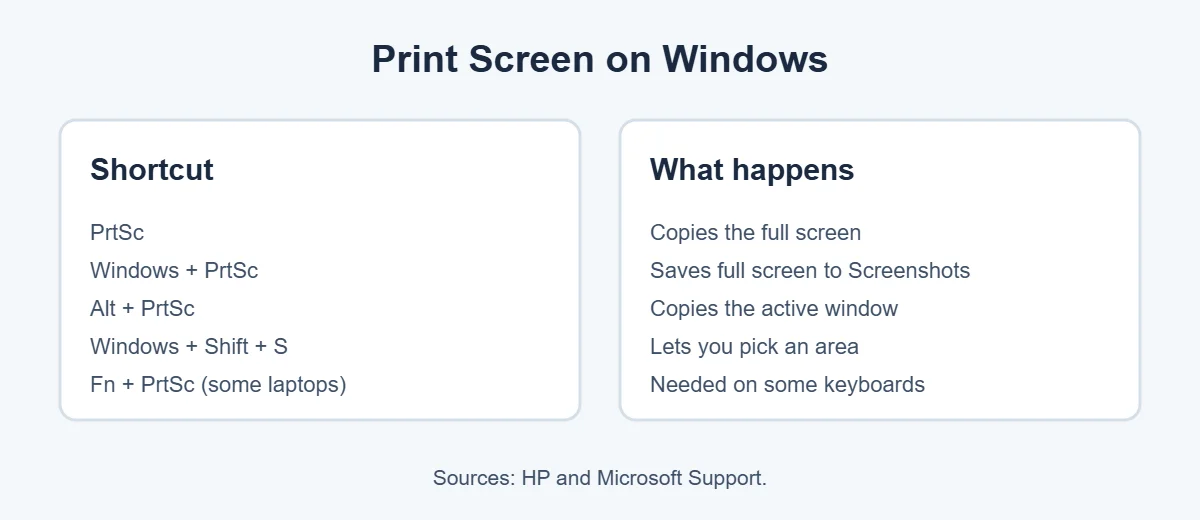
Press PrtSc once. Windows copies the whole screen to your clipboard. According to HP, the key is usually in the upper-right corner. On some laptops you need Fn + PrtSc.
2. Windows + PrtSc (save it as a file)
This is the easiest print screen method if you want a file. Press Windows + PrtSc. The screen dims for a moment, and the image is saved in Pictures, then Screenshots.
3. Alt + PrtSc (one window only)
Click the window you want, then press Alt + PrtSc. Only that window is copied. Paste it with Ctrl + V.
4. Windows + Shift + S (pick an area)
Want just part of the screen? Press Windows + Shift + S, then drag over the area. Microsoft says the snip is copied and also saved to the Screenshots folder automatically.
5. Snipping Tool app
Open Start, type Snipping Tool and click New. You can choose a mode, add a delay, draw on the image and save it. It’s the best print screen option when you want to highlight something.
How to Paste and Save a Print Screen
A common follow-up to “how do I print screen” is “where did it go?” Pressing PrtSc alone only copies the image. Here’s how to turn it into a file.
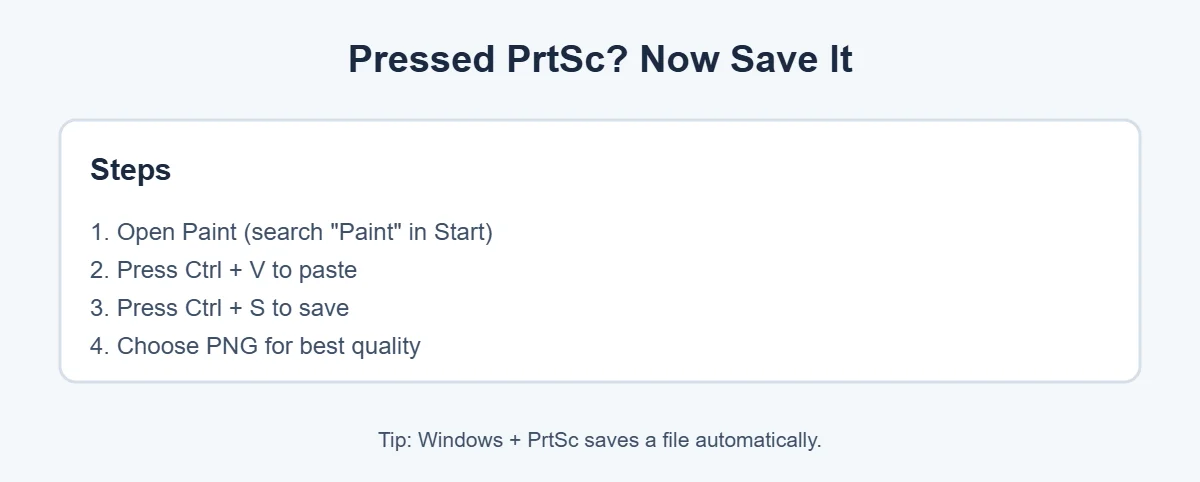
- Open Paint from the Start menu.
- Press Ctrl + V to paste your print screen.
- Press Ctrl + S and choose where to save it.
- Pick PNG. HP recommends it because it keeps quality at a small file size.
You can also paste straight into Word, an email or a chat app without saving first.
How to Print Screen on a Mac
How do I print screen on a Mac? Macs don’t have a Print Screen key, but these shortcuts from Apple Support do the same job.
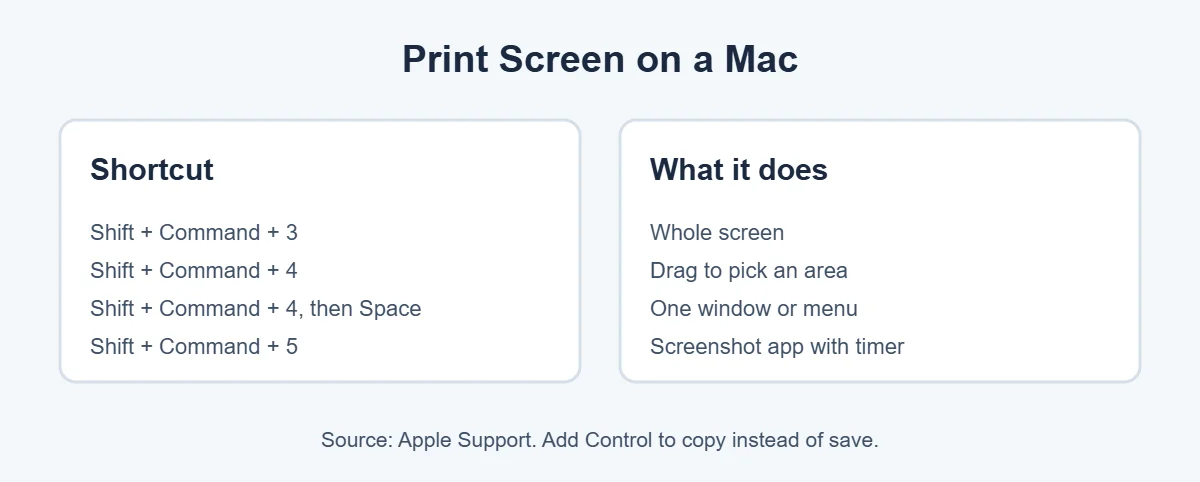
- Shift + Command + 3: captures the whole screen.
- Shift + Command + 4: drag to capture an area.
- Shift + Command + 4, then Space bar: click a window or menu.
- Shift + Command + 5: opens the Screenshot app, with a timer and more options.
Apple says screenshots save to your desktop by default. Add Control to any shortcut to copy instead of save.
Print Screen Not Working? Quick Fixes
- Hold Fn: many laptop keyboards need Fn + PrtSc.
- Remember to paste: PrtSc alone doesn’t create a file. Paste it, or use Windows + PrtSc.
- Use Windows + Shift + S: it works even without a PrtSc key.
- Check other apps: some screenshot or cloud apps take over the PrtSc key. Close them and try again.
- Restart and update: a quick restart and the latest Windows updates fix most glitches.
Shopping for a new laptop with a better keyboard? Here’s why laptops cost more than desktops, and what to do with your old one: does ecoATM take laptops?
Frequently Asked Questions
Where is the Print Screen key?
On most keyboards, the Print Screen key is in the top-right area, often labeled PrtSc, PrtScn or Print Scrn. HP says it’s usually near SysReq. On some laptops it shares a key with another function, so you hold Fn while pressing it.
Where do print screen images go?
Pressing PrtSc alone copies the screen to your clipboard, so you need to paste it somewhere. Pressing Windows + PrtSc saves the image as a file in Pictures, inside Screenshots. On a Mac, screenshots save to your desktop by default.
How do I print screen just one window?
On Windows, click the window you want, then press Alt + PrtSc. It copies only that window. On a Mac, press Shift + Command + 4, then press the Space bar and click the window.
How do I print screen on a laptop without a PrtSc key?
Press Windows + Shift + S to open Snipping Tool’s overlay. It works on any Windows 10 or 11 laptop, even without a Print Screen key. You can also open Snipping Tool from the Start menu.
How do I print screen on a Mac?
Macs don’t have a Print Screen key. Press Shift + Command + 3 for the whole screen, Shift + Command + 4 to pick an area, or Shift + Command + 5 for more options. Apple says screenshots save to the desktop by default.
Why is print screen not working?
On many laptops, you need to hold Fn with the PrtSc key. Also check that you’re pasting the image somewhere, because PrtSc alone doesn’t create a file. If nothing helps, use Windows + Shift + S instead.
The Bottom Line
How do I print screen? On Windows, press PrtSc to copy, Windows + PrtSc to save, or Windows + Shift + S to pick an area. On a Mac, press Shift + Command + 3 or 4.
Try each print screen shortcut once, and you’ll always know the fastest way to grab what’s on your screen.
{“@context”:”https://schema.org”,”@type”:”FAQPage”,”mainEntity”:[{“@type”:”Question”,”name”:”Where is the Print Screen key?”,”acceptedAnswer”:{“@type”:”Answer”,”text”:”On most keyboards, the Print Screen key is in the top-right area, often labeled PrtSc, PrtScn or Print Scrn. HP says it’s usually near SysReq. On some laptops it shares a key with another function, so you hold Fn while pressing it.”}},{“@type”:”Question”,”name”:”Where do print screen images go?”,”acceptedAnswer”:{“@type”:”Answer”,”text”:”Pressing PrtSc alone copies the screen to your clipboard, so you need to paste it somewhere. Pressing Windows + PrtSc saves the image as a file in Pictures, inside Screenshots. On a Mac, screenshots save to your desktop by default.”}},{“@type”:”Question”,”name”:”How do I print screen just one window?”,”acceptedAnswer”:{“@type”:”Answer”,”text”:”On Windows, click the window you want, then press Alt + PrtSc. It copies only that window. On a Mac, press Shift + Command + 4, then press the Space bar and click the window.”}},{“@type”:”Question”,”name”:”How do I print screen on a laptop without a PrtSc key?”,”acceptedAnswer”:{“@type”:”Answer”,”text”:”Press Windows + Shift + S to open Snipping Tool’s overlay. It works on any Windows 10 or 11 laptop, even without a Print Screen key. You can also open Snipping Tool from the Start menu.”}},{“@type”:”Question”,”name”:”How do I print screen on a Mac?”,”acceptedAnswer”:{“@type”:”Answer”,”text”:”Macs don’t have a Print Screen key. Press Shift + Command + 3 for the whole screen, Shift + Command + 4 to pick an area, or Shift + Command + 5 for more options. Apple says screenshots save to the desktop by default.”}},{“@type”:”Question”,”name”:”Why is print screen not working?”,”acceptedAnswer”:{“@type”:”Answer”,”text”:”On many laptops, you need to hold Fn with the PrtSc key. Also check that you’re pasting the image somewhere, because PrtSc alone doesn’t create a file. If nothing helps, use Windows + Shift + S instead.”}}]}