
Need to take a screenshot on Surface Pro without keyboard? Press and hold the Power button, then press Volume Up. The screen dims for a second, and your screenshot is saved in Pictures, then Screenshots. No Type Cover needed.
Below are four easy ways to take a screenshot on Surface Pro without keyboard, including touch and pen options, where your screenshots are saved, and how to record your screen.
[ADD PERSONAL EXPERIENCE: one line about using your Surface as a tablet and why you needed a screenshot.]
Table of Contents
Way 1: Power + Volume Up (Fastest)
This is the official way to take a screenshot on Surface Pro without keyboard. According to Microsoft Support, it works on Surface Pro, Surface Book, Surface Go and Surface Studio.
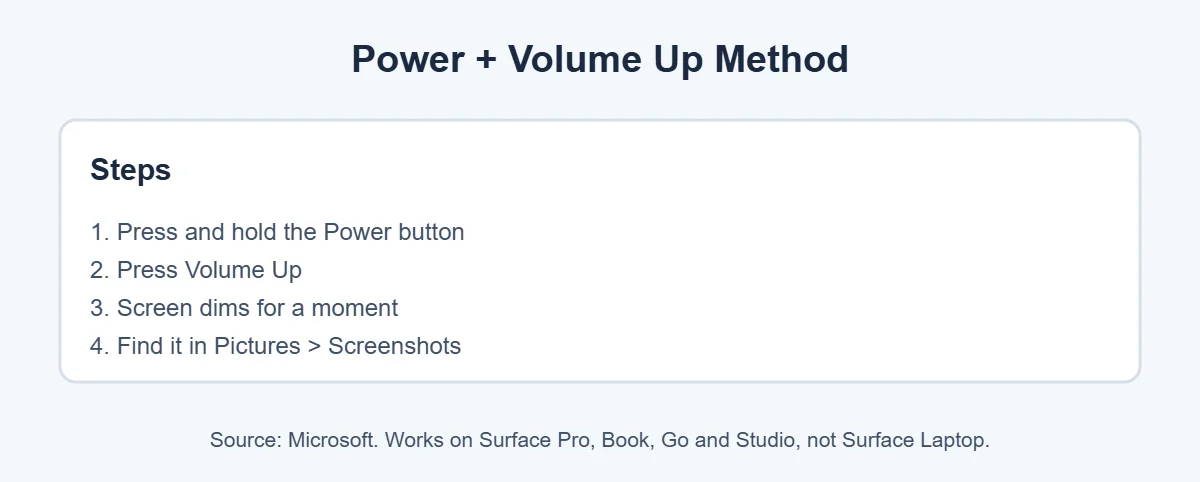
- Press and hold the Power button.
- While holding it, press Volume Up.
- Let go when the screen dims.
- Open File Explorer and go to Pictures, then Screenshots.
Microsoft notes this shortcut doesn’t work on Surface Laptop, which uses keyboard shortcuts instead.
Way 2: Snipping Tool by Touch
Want only part of the screen? Snipping Tool works great with touch, so it’s another easy way to take a screenshot on Surface Pro without keyboard.
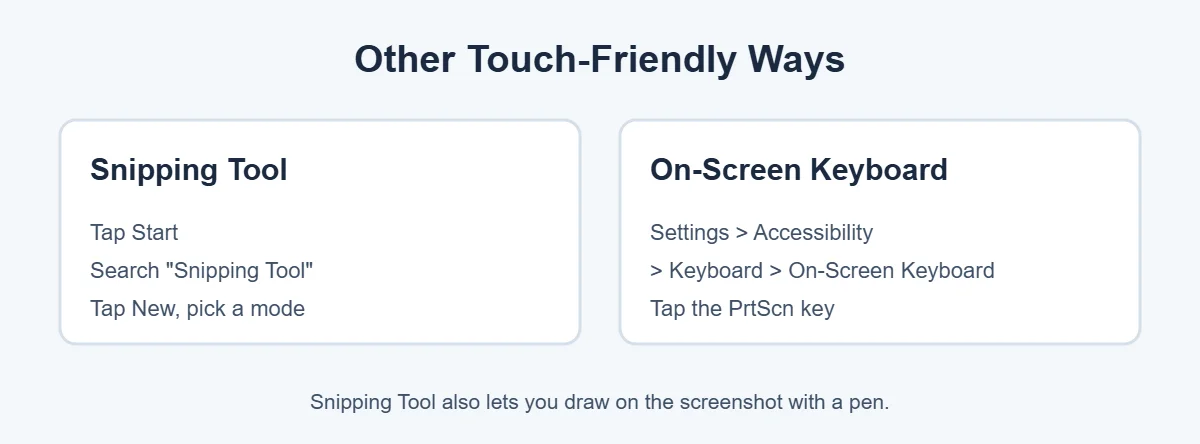
- Tap Start and search for Snipping Tool.
- Tap New.
- Choose Rectangle, Window, Full screen or Freeform.
- Drag your finger or pen over the area.
- Draw on it if you like, then tap Save.
Microsoft says snips also save automatically to the Screenshots folder. Tip: pin Snipping Tool to your taskbar so it’s always one tap away.
Way 3: The On-Screen Keyboard
Windows has a full on-screen keyboard with a PrtScn key. To turn it on, open Settings, then Accessibility, then Keyboard, and switch on On-Screen Keyboard, as Microsoft explains. Tap PrtScn to copy the screen, then paste it into Paint or a document.
Way 4: With the Type Cover (When You Have It)
If your keyboard is attached later, these shortcuts are quicker:
- Windows + PrtScn: saves a full screenshot.
- Windows + Shift + S: pick an area with Snipping Tool.
- Fn + Spacebar: captures the window or desktop section, per Microsoft.
Where Do Surface Pro Screenshots Go?
Every screenshot on Surface Pro without keyboard is saved in the same place: open File Explorer, click Pictures, then open Screenshots. Snipping Tool snips go there too, unless you change the folder in Snipping Tool’s settings.
How to Record Your Surface Pro Screen
On Windows 11, Snipping Tool can also record video, which is perfect for showing someone how to do something.
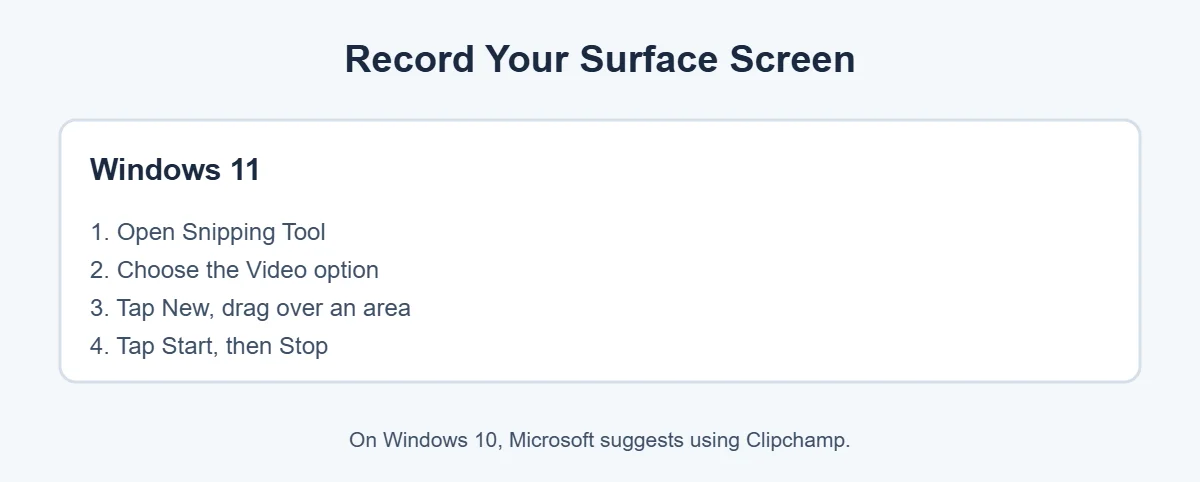
Open Snipping Tool, choose the Video option, tap New, drag over the area and tap Start. Tap Stop when you’re done. Microsoft says Windows 10 users should use Clipchamp instead.
Screenshot Not Working? Quick Fixes
- Hold Power first, then press Volume Up. Don’t press both at the exact same time.
- Check that you’re on a Surface Pro, Book, Go or Studio, not a Surface Laptop.
- Restart the Surface and install the latest Windows updates.
- Use Snipping Tool from Start as a backup.
If your Surface or laptop is getting old, here’s how long laptops usually last, and where to sell an old laptop.
Frequently Asked Questions
How do I take a screenshot on Surface Pro without a keyboard?
Press and hold the Power button, then press Volume Up. Microsoft says this works on Surface Pro, Surface Book, Surface Go and Surface Studio. The screen dims briefly, and the screenshot is saved in Pictures, inside the Screenshots folder.
Where do Surface Pro screenshots go?
Microsoft says Surface screenshots are saved in File Explorer under Pictures, then Screenshots. Open File Explorer, click Pictures and look for the Screenshots folder. Snipping Tool snips are saved there automatically too.
Why is Power + Volume Up not working on my Surface?
Make sure you press and hold Power first, then press Volume Up, rather than pressing both at exactly the same time. Microsoft notes the shortcut doesn’t work on Surface Laptop. If it still fails, use Snipping Tool from the Start menu instead.
Can I screenshot on Surface Pro with the pen?
You can open Snipping Tool by tapping Start and searching for it, then use your pen to select an area and draw on the screenshot. Pen button shortcuts depend on your pen model and settings, so check the Pen settings in Windows.
How do I screenshot part of the screen on Surface Pro?
Open Snipping Tool, tap New and choose Rectangle or Freeform. Then drag your finger or pen over the area you want. If your Type Cover is attached, Windows + Shift + S does the same thing faster.
Does the Surface screenshot shortcut work on Surface Laptop?
No. Microsoft says the Power + Volume Up shortcut doesn’t work on Surface Laptop. On Surface Laptop, use the keyboard shortcuts instead, like Windows + PrtScn or Windows + Shift + S.
The Bottom Line
The quickest way to take a screenshot on Surface Pro without keyboard is to hold Power and press Volume Up. For part of the screen, use Snipping Tool by touch, and for typing-style shortcuts, turn on the On-Screen Keyboard.
Your screenshots always land in Pictures, then Screenshots, so they’re easy to find and share.
{“@context”:”https://schema.org”,”@type”:”FAQPage”,”mainEntity”:[{“@type”:”Question”,”name”:”How do I take a screenshot on Surface Pro without a keyboard?”,”acceptedAnswer”:{“@type”:”Answer”,”text”:”Press and hold the Power button, then press Volume Up. Microsoft says this works on Surface Pro, Surface Book, Surface Go and Surface Studio. The screen dims briefly, and the screenshot is saved in Pictures, inside the Screenshots folder.”}},{“@type”:”Question”,”name”:”Where do Surface Pro screenshots go?”,”acceptedAnswer”:{“@type”:”Answer”,”text”:”Microsoft says Surface screenshots are saved in File Explorer under Pictures, then Screenshots. Open File Explorer, click Pictures and look for the Screenshots folder. Snipping Tool snips are saved there automatically too.”}},{“@type”:”Question”,”name”:”Why is Power + Volume Up not working on my Surface?”,”acceptedAnswer”:{“@type”:”Answer”,”text”:”Make sure you press and hold Power first, then press Volume Up, rather than pressing both at exactly the same time. Microsoft notes the shortcut doesn’t work on Surface Laptop. If it still fails, use Snipping Tool from the Start menu instead.”}},{“@type”:”Question”,”name”:”Can I screenshot on Surface Pro with the pen?”,”acceptedAnswer”:{“@type”:”Answer”,”text”:”You can open Snipping Tool by tapping Start and searching for it, then use your pen to select an area and draw on the screenshot. Pen button shortcuts depend on your pen model and settings, so check the Pen settings in Windows.”}},{“@type”:”Question”,”name”:”How do I screenshot part of the screen on Surface Pro?”,”acceptedAnswer”:{“@type”:”Answer”,”text”:”Open Snipping Tool, tap New and choose Rectangle or Freeform. Then drag your finger or pen over the area you want. If your Type Cover is attached, Windows + Shift + S does the same thing faster.”}},{“@type”:”Question”,”name”:”Does the Surface screenshot shortcut work on Surface Laptop?”,”acceptedAnswer”:{“@type”:”Answer”,”text”:”No. Microsoft says the Power + Volume Up shortcut doesn’t work on Surface Laptop. On Surface Laptop, use the keyboard shortcuts instead, like Windows + PrtScn or Windows + Shift + S.”}}]}