
Some keys on keyboard not working? Don’t panic. Start with three quick checks: restart your computer, press Num Lock, and turn off Filter Keys in Windows Settings. These fix most cases in minutes. If not, clean under the keys and update your keyboard driver.
Below are eight easy fixes, ordered from easiest to hardest, plus a simple test to see if the problem is software or hardware. They work for laptop keyboards and external keyboards on Windows.
[ADD PERSONAL EXPERIENCE: a short story about a time a few of your keys stopped working, and what fixed it.]
Table of Contents
Why Are Some Keys on Keyboard Not Working?
When only some keys on keyboard not working, the cause is usually small. Here are the most common reasons:
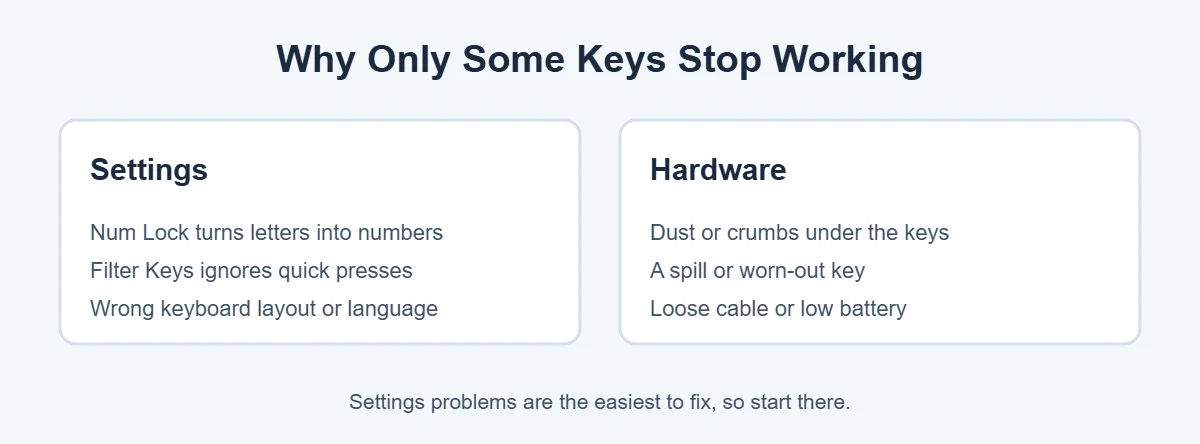
- Num Lock is on: on many laptops, letter keys like J, K and L become numbers.
- Filter Keys is on: Windows ignores short or repeated presses, so keys seem dead.
- Wrong layout: keys type the wrong symbols, like @ instead of “.
- Dirt and crumbs: debris blocks a key from pressing down fully.
- Drivers or updates: an old or broken driver confuses Windows.
- Physical damage: a spill or a worn-out key switch.
8 Easy Fixes for Keyboard Keys Not Working
If some keys on keyboard not working is your problem, try these in order. After each step, open Notepad and type the problem keys to check.
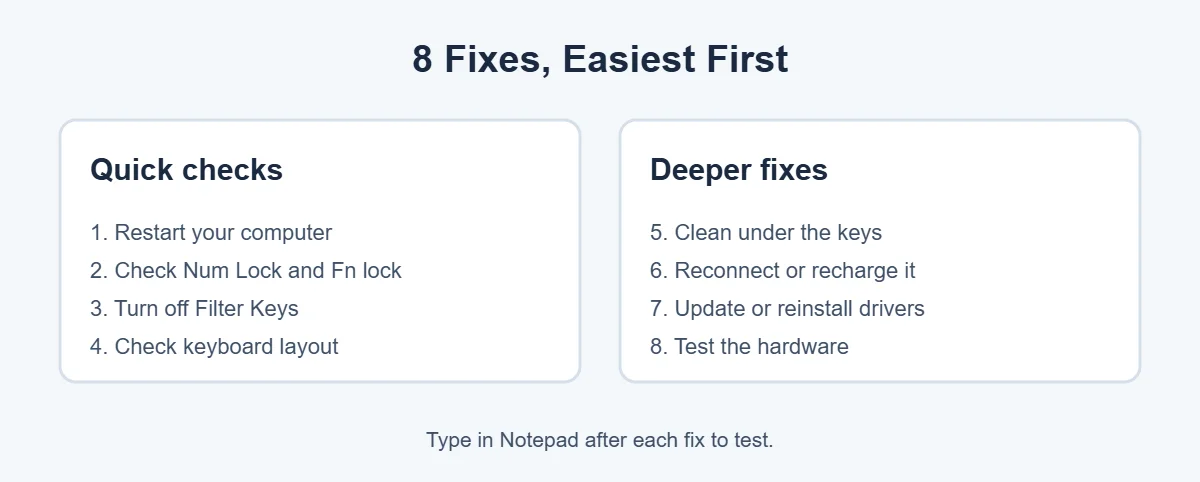
1. Restart your computer
A restart clears temporary glitches. It sounds too simple, but it’s the first step in most official guides, including Dell’s keyboard guide.
2. Check Num Lock and Fn lock
If letters type numbers, press Num Lock (or Fn + Num Lock on small laptops). If the F1-F12 keys don’t work, your Fn lock may be on. On many laptops, Fn + Esc switches it back.
3. Turn off Filter Keys and Sticky Keys
Filter Keys can make keys feel dead because Windows ignores quick taps. On Windows 11, open Settings, then Accessibility, then Keyboard, and turn off Filter keys and Sticky keys. Holding the right Shift key for eight seconds often turns Filter Keys on by mistake, so turn off that shortcut too.
4. Check your keyboard layout
If keys work but type the wrong characters, your layout changed. Open Settings, then Time and language, then Language and region. Make sure your language and keyboard (for example, US) are at the top, and remove layouts you don’t use. Pressing Alt + Shift or Windows + Space switches layouts, which is easy to do by accident.
5. Clean under the keys
Crumbs and dust are a top reason some keys on keyboard not working. Turn the computer off first. Then:
- Turn the keyboard upside down and shake it gently.
- Blow out debris with compressed air. Hold the can upright, because tilting it can spray freezing liquid.
- Wipe sticky keys with a cloth lightly dampened (not wet) with isopropyl alcohol, and let it dry.
6. Reconnect or recharge the keyboard
For external keyboards, Microsoft suggests unplugging the USB cable, waiting a bit, then plugging it into a different port. Avoid unpowered USB hubs. For wireless keyboards, charge or replace the batteries and reconnect the receiver or Bluetooth.
7. Update or reinstall the keyboard driver
- Search for Check for updates in Start and install any Windows updates.
- Search for Device Manager and open it.
- Expand Keyboards, double-click your keyboard, open the Driver tab and choose Update driver.
- Still broken? Choose Uninstall device, then restart. Windows reinstalls the driver automatically.
8. Test the hardware
Finally, find out if the keyboard itself is the problem.
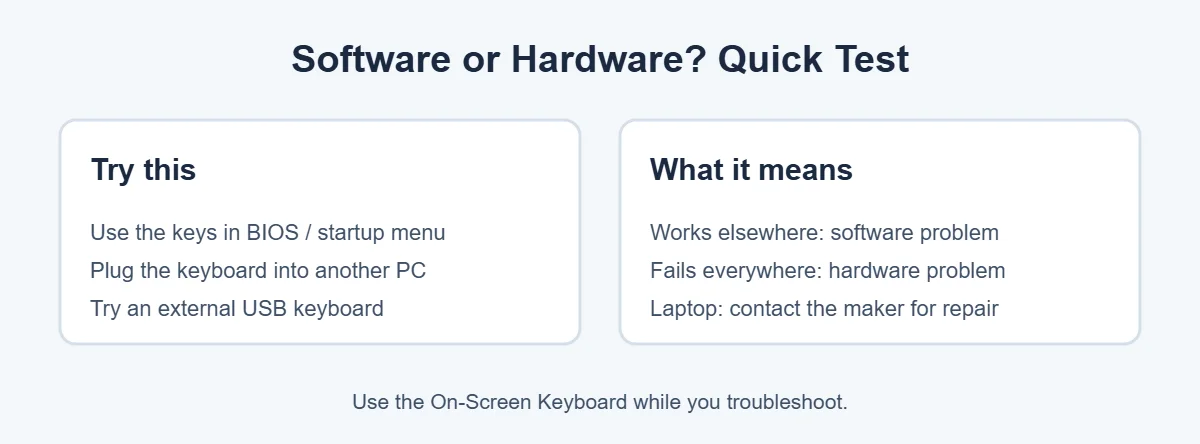
Restart and press keys in the startup or BIOS menu (often F2, F12 or Del while the logo shows). If the keys work there, the problem is in Windows. For an external keyboard, plug it into another computer. If it fails there too, it needs replacing.
How to Keep Typing While You Fix It
- On-Screen Keyboard: search for “On-Screen Keyboard” in Start. You can click keys with your mouse or touchpad.
- USB keyboard: any cheap wired keyboard works instantly on a laptop.
Laptop Keys Not Working? Extra Tips
Laptop keyboards are harder to replace, so be gentle. When some keys on keyboard not working on a laptop, check whether it’s still under warranty before you pay for a repair. If the laptop is old and the repair costs too much, here’s what to do with an old laptop. If you spilled a drink, turn the laptop off right away, unplug it, and don’t turn it back on until it’s checked. If you’re shopping for a new one, this guide on why laptops cost more than desktops may help.
Frequently Asked Questions
Why are only some keys on my keyboard not working?
Usually it’s a setting, like Num Lock or Filter Keys, or dirt stuck under those keys. A wrong keyboard layout can also make keys type the wrong characters. If only one area of keys is dead after a spill, the keyboard itself may be damaged.
How do I fix keys that type the wrong letters?
Check your keyboard layout. On Windows 11, open Settings, then Time and language, then Language and region, and make sure the right language and keyboard are listed first. Remove extra layouts you don’t use, and watch for Alt + Shift, which switches layouts by accident.
Can a driver cause some keys to stop working?
Yes, though it’s less common than settings or dirt. Microsoft suggests checking for updates in Windows Update, then opening Device Manager, finding your keyboard and choosing Update driver. Uninstalling the device and restarting also makes Windows reinstall a fresh driver.
How do I clean keyboard keys that aren’t working?
Turn the computer off, turn the keyboard upside down and shake gently, then blow out crumbs with compressed air held upright. Wipe sticky keys with a cloth lightly dampened with isopropyl alcohol. Let everything dry before turning it back on.
Can I type while some keys are broken?
Yes. Use the Windows On-Screen Keyboard by searching for it in Start, or plug in a cheap USB keyboard. Both let you keep working while you fix the problem or wait for a repair.
When should I replace my keyboard?
If keys fail on another computer too, or if they still don’t work after cleaning, updates and settings checks, the keyboard is likely damaged. External keyboards are cheap to replace. For laptops, contact the maker, especially if you’re still under warranty.
The Bottom Line
When some keys on keyboard not working, start with the easy fixes: restart, check Num Lock and Fn lock, turn off Filter Keys and check your layout. Then clean under the keys and update the driver.
If the keys still fail in the BIOS menu or on another computer, the keyboard is damaged, and it’s time to replace it or contact your laptop’s maker.