
The easiest PC to PC transfer in Windows 11 now runs through the Windows Backup app and OneDrive, because Microsoft removed its local PC-to-PC Migration tool in the October 2026 update. For large libraries, copy your files to an external drive instead. Both methods are free, and neither needs extra software.
If you are planning a PC to PC transfer after buying a new laptop or desktop over Black Friday week (Black Friday is November 27, 2026), this change matters. The quick wireless option many guides still describe is gone, and the replacement has a 5 GB free storage cap that most people blow past. Below are five methods that still work, which one fits your situation, and a checklist so nothing gets left behind on the old machine.
Last checked: November 22, 2026. Microsoft changes Windows features often, so menu names may shift.
Table of contents
- What happened to PC-to-PC Migration?
- Which PC to PC transfer method should you use?
- Way 1: Windows Backup and OneDrive
- Way 2: An external drive
- Way 3: Copy over your home network
- Way 4: Another cloud drive
- Way 5: Paid PC to PC transfer software
- What will not move on its own
- Before you wipe the old PC
- FAQ
What happened to PC-to-PC Migration?
Microsoft removed PC-to-PC Migration from Windows 11 in late 2026 and now sends users to Windows Backup, which syncs your data through OneDrive. The change first showed up in the September 22, 2026 optional preview update (KB5124010) and reached everyone with the October 13, 2026 Patch Tuesday update, according to How-To Geek.
PC-to-PC Migration was a local PC to PC transfer feature inside the Windows Backup app. Microsoft began testing it in July 2025. You paired the old and new PCs with a one-time code, picked folders, and the files moved over your Wi-Fi or wired network without touching the cloud.
Windows Latest spotted Microsoft’s support page update in September, which now says the feature is no longer available. Microsoft has not given a public reason.
Why people are frustrated:
- The old PC to PC transfer tool had no size cap. A 300 GB photo library moved as easily as a 3 GB one.
- Windows Backup needs a Microsoft account and counts backed-up folders against your OneDrive storage.
- Free OneDrive storage is only 5 GB, so most real-world backups need a paid plan or a different method.
[ADD PERSONAL EXPERIENCE: Describe a recent PC to PC transfer you did, such as how many GB you moved, which method you used, how long it took and what you forgot to bring over.]
Which PC to PC transfer method should you use?
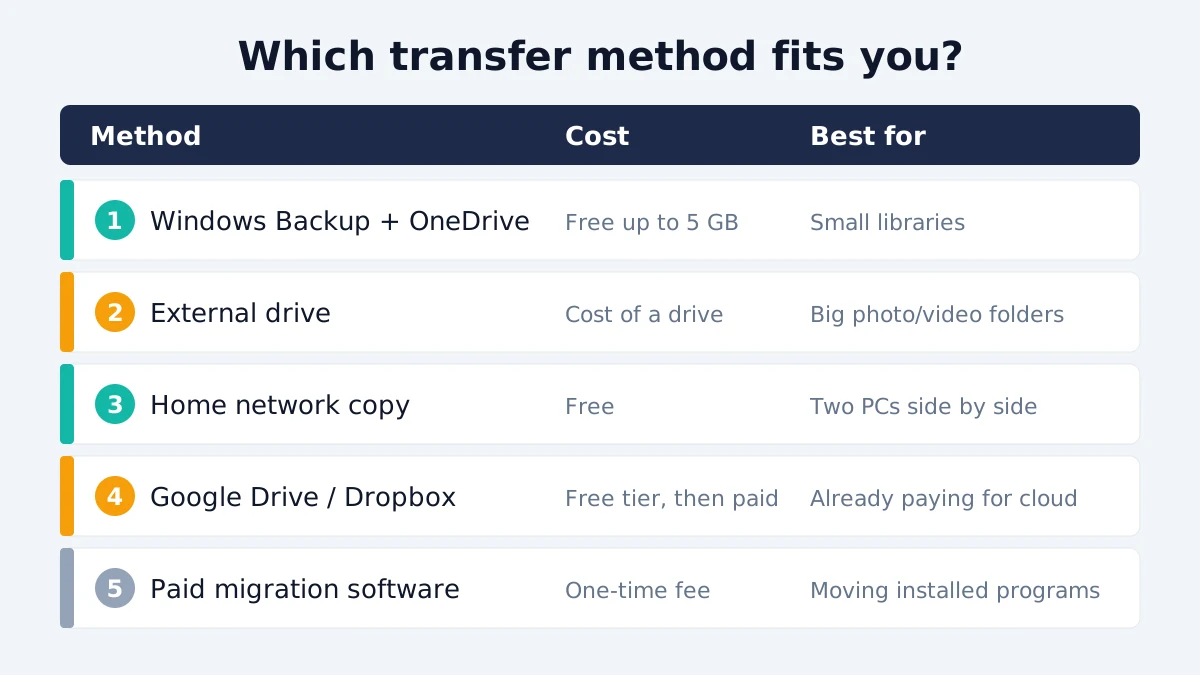
Use Windows Backup if your files fit in OneDrive and you sign in with a Microsoft account; use an external drive for anything larger than a few gigabytes. The other three methods suit specific cases, such as two PCs on the same network or a family that already pays for Google storage.
| Method | Cost | Best for | Size limit | Moves settings? |
|---|---|---|---|---|
| Windows Backup + OneDrive | Free up to 5 GB | Small libraries, Microsoft account users | Your OneDrive plan | Yes, plus app list and Wi-Fi |
| External drive | Price of a drive | Big photo and video folders | Drive size | No |
| Home network copy | Free | Two PCs side by side | None | No |
| Google Drive or Dropbox | Free tier, then paid | People already paying for storage | Your cloud plan | No |
| Paid migration software | One-time fee | Moving installed programs | Usually none | Often yes |
A simple rule for any PC to PC transfer: count your data first. Open File Explorer on the old PC, right-click your user folder (C:\Users\YourName), choose Properties, and look at the size. If it is under 5 GB, Way 1 is free. If it is 50 GB or 500 GB, go straight to Way 2.
Way 1: Windows Backup and OneDrive
Windows Backup is Microsoft’s official PC to PC transfer method: it uploads your main folders, settings, app list and saved Wi-Fi details to your Microsoft account, then restores them during setup of the new PC. It is free if everything fits in 5 GB of OneDrive storage.
Windows Backup is a built-in app in Windows 10 and Windows 11 that saves your data to OneDrive. Per Microsoft’s transfer guide, it is now the recommended path for moving to a new Windows PC.
What Windows Backup moves
- Folders: Desktop, Documents, Pictures and Videos (Music on some Windows 11 versions)
- Apps: a list of installed apps, so you can reinstall them; Microsoft Store apps usually come back on their own
- Settings: Windows preferences such as theme and pinned apps
- Credentials: saved Wi-Fi networks and some sign-in details
Steps on the old PC
- Install all pending Windows updates in Settings > Windows Update.
- If you use a local account, switch to a Microsoft account in Settings > Accounts > Your info.
- Open the Windows Backup app from the Start menu.
- Turn on Folders, Apps, Settings and Credentials.
- Select Back up and wait until it finishes.
- Confirm your files appear at onedrive.com before you touch the new PC.
Steps on the new PC
- Start the new PC and go through the first setup screens until it asks for a network.
- Connect to Wi-Fi or Ethernet.
- Sign in with the same Microsoft account you used on the old PC.
- When asked, pick the backup named after your old computer and select Restore.
- Let OneDrive finish syncing before you unplug or shut down.
The restore option only appears during first setup or after a reset. If you already skipped it, you can still open OneDrive on the new PC and download your folders manually.
The 5 GB catch
Free OneDrive accounts get 5 GB, and How-To Geek noted that Microsoft’s own promo screenshot showed 4.5 GB already used. Paid Microsoft 365 plans add far more space; check current prices on Microsoft’s OneDrive plans page because they can change. You can cancel after the move if you only need the space for a month.
One more detail: OneDrive may show restored files as cloud placeholders. If you need them offline, right-click the folder and choose Always keep on this device.
Way 2: An external drive
An external drive is the most reliable PC to PC transfer for large libraries: copy your folders to a USB drive on the old PC, then plug it into the new one and copy them back. There is no storage cap beyond the drive itself, and nothing goes to the cloud.
For a PC to PC transfer without the cloud, Microsoft has its own guide to moving files with an external storage device. The short version:
- Plug a USB flash drive or portable SSD into the old PC. Use one larger than your user folder.
- Open File Explorer and go to C:\Users\YourName.
- Select Desktop, Documents, Downloads, Pictures, Music and Videos.
- Right-click and choose Copy (not Cut), then paste into the drive.
- Safely eject the drive, plug it into the new PC and paste the folders into the matching locations.
Tips that speed up a PC to PC transfer by drive:
- A portable SSD copies far faster than an old USB 2.0 thumb drive.
- Copy, don’t move. Keep the originals on the old PC until you have checked everything on the new one.
- Check hidden folders you care about, such as game saves in Documents\My Games or C:\Users\YourName\Saved Games.
Way 3: Copy over your home network
If both PCs are on the same home network, you can share a folder on the old PC and copy it from the new one, which works like the removed PC to PC transfer tool but without a wizard. It is free and has no size limit.
- On the old PC, right-click the folder you want, choose Properties > Sharing > Share, and add your user account.
- Note the PC name in Settings > System > About.
- On the new PC, open File Explorer and type
\\OLD-PC-NAMEin the address bar. - Sign in with the old PC’s account if asked, then copy the shared folder across.
For a handful of files, Nearby sharing (Settings > System > Nearby sharing) can also send items between two Windows PCs over Bluetooth and Wi-Fi. It is fine for a few documents, but too slow for a full photo library.
Turn sharing off on the old PC when you finish, especially if you plan to sell it.
Way 4: Another cloud drive
If you already pay for Google Drive, Dropbox or iCloud storage, install that app on both PCs and let it sync your folders. This is a PC to PC transfer that doubles as an ongoing backup.
- Google Drive for desktop can back up Desktop, Documents and Pictures and sync them to the new PC.
- iCloud for Windows works well for iPhone owners who keep photos in iCloud.
- Dropbox can sync any folder you drop into it.
The trade-off is time. A cloud PC to PC transfer of 100 GB on a typical home connection can take many hours to upload, and the new PC then has to download it all again.
Way 5: Paid PC to PC transfer software
Paid migration tools are the only option that can move many installed desktop programs, not just files. They cost a one-time fee and are worth it if you rely on older software you can no longer download.
Third-party utilities, such as Laplink PCmover, copy files, settings and many installed programs over a network or cable. Check the vendor’s current price and its list of supported apps before buying. Some programs, especially ones with hardware-locked licences, still need a reinstall and a fresh activation.
For most home users, a free PC to PC transfer with Way 1 or Way 2, plus a quick reinstall of apps, is enough.
What will not move on its own
No free PC to PC transfer method brings over your desktop programs, licence keys or every saved password, so plan for those separately. Windows Backup only saves a list of apps; you still reinstall each one.
Handle these before your PC to PC transfer is finished:
- Desktop programs: Download fresh installers from the official sites. Microsoft Store apps usually reinstall themselves.
- Licence keys: Write down keys for paid software, and deactivate the old PC where the app allows it (Adobe, some antivirus tools, older Office versions).
- Browser data: Sign in to Chrome, Edge or Firefox sync on the old PC first, so bookmarks and passwords follow you.
- Passwords: A password manager is the cleanest route. Export only if your manager supports encrypted export.
- Email: Webmail needs nothing. Older desktop email apps may store mail locally, so check before wiping.
- Game saves: Steam Cloud and Xbox saves sync automatically; some older games keep saves in Documents.
- Printers and drivers: Reinstall them on the new PC from the manufacturer’s site.
Before you wipe the old PC
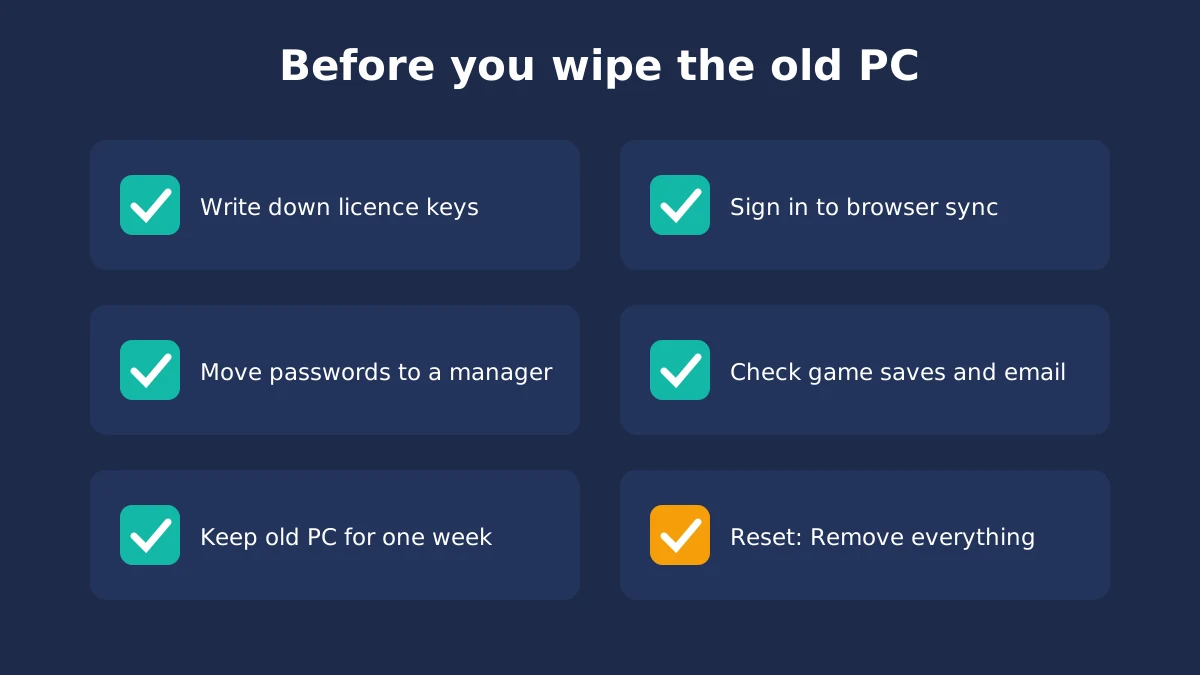
Keep the old PC untouched for at least a week after the PC to PC transfer, then reset it with Windows’ “Remove everything” option before you sell, donate or recycle it. That gives you time to notice a missing folder.
- Open three or four random files on the new PC to confirm they work.
- Check that photos have real thumbnails, not blank icons.
- Sign out of your Microsoft account, Apple ID and any streaming apps on the old PC.
- Turn off BitLocker or note your recovery key at account.microsoft.com.
- Go to Settings > System > Recovery > Reset this PC, choose Remove everything and pick the option that cleans the drive.
If you plan to sell it, our guide on where to sell your PC covers trade-in and resale options. And if the new machine feels sluggish after all the syncing, try the fixes in how to fix a slow computer.
Selling a phone as part of the same upgrade? Follow our checklist to wipe your phone before selling.
FAQ
Does Windows 11 still have PC-to-PC Migration?
No. Microsoft removed the PC-to-PC Migration option from the Windows Backup app with the September 2026 preview update, and the October 13, 2026 Patch Tuesday update brought the change to all users. Microsoft’s support page now says the feature is no longer available and points people to Windows Backup with OneDrive instead.
What is the fastest way to transfer files to a new PC?
For large amounts of data, a fast portable SSD is usually the quickest PC to PC transfer. Copy your user folders to it on the old PC, then copy them onto the new one. A wired network copy is also quick. Cloud methods depend on your upload speed, so 100 GB or more can take many hours to move.
Is Windows Backup free?
The Windows Backup app is free and built into Windows 10 and 11. Storage is the limit: free OneDrive accounts include 5 GB, and backed-up folders count against it. If your Desktop, Documents and Pictures folders are larger, you will need a paid Microsoft 365 plan or a different method, such as an external drive.
Can I transfer programs to a new PC for free?
Not fully. A free PC to PC transfer with Windows Backup restores a list of your apps and reinstalls many Microsoft Store apps, but desktop programs must be downloaded and installed again. Paid migration tools can move many installed programs. Either way, keep your licence keys handy, since some software needs reactivation on new hardware.
Do I need a Microsoft account to use Windows Backup?
Yes. Windows Backup syncs through OneDrive, which requires a personal Microsoft account. If you use a local account, switch to a Microsoft account under Settings, Accounts, Your info before backing up. If you prefer to stay local, use an external drive or a home network copy instead.
Can I transfer files from Windows 10 to Windows 11?
Yes. Windows Backup works on Windows 10 too, so you can back up the old Windows 10 PC and restore during setup of the new Windows 11 machine. An external drive also works between any versions. Windows 10 support ended in October 2025, so moving to a supported PC is a good idea.
How long should I keep my old PC after transferring?
Keep it for at least a week. Use the new PC normally and confirm your files, photos, passwords and apps are all there. Once you are sure nothing is missing, reset the old PC with the Remove everything option before selling, donating or recycling it, so nobody can recover your data.
Bottom line
A PC to PC transfer in Windows 11 now means choosing between Microsoft’s cloud route and doing it yourself. If your files fit in 5 GB and you use a Microsoft account, Windows Backup is the least effort. For anything bigger, an external drive is cheaper, faster and keeps your data off the cloud. Whichever you choose, write down licence keys, sync your browser and keep the old PC for a week before wiping it.
